

0. What is XPath?
XPath is an abbreviation for 'XML Path Language', a language for specifying paths to access specific elements or attributes in an XML document.
XPath is commonly used in web crawling tasks, so let's first look at the basic syntax of XPath.
1. Basic Syntax of XPath
<!DOCTYPE html>
<html>
<head>
    <meta charset="utf-8">
    <title>hashscraper</title>
</head>
<body>
    <div id="container">
        <div class="title">
            <p class="content1">let's start crawling!</p>
            <p class="content2">crawling is fun!</p>
        </div>
    </div>
</body>
</html>
2. HTML Code
Here is a simple HTML code.
HTML code consists of elements and attributes, and each element and attribute are hierarchically related.
XPath represents an XML document in a tree structure and provides paths to extract all nodes, attributes, and data from the top node to the bottom node.
(*Here, a node refers to each part of an XML document such as elements, attributes, and text content.)
Let's find the path to access the title element in the code above.
In terms of the tree structure, the title element consists of the html element → head element → title element in order.
Therefore, the XPath for the title element is as follows.
/html/head/title
Additionally, in XPath, attributes that bind elements like class are represented with "@" symbol. Using "@" to represent the XPath of the first p element in the code above looks like this.
/html/body/div/div/p[@class='content1']
3. Two Expression Methods of XPath
XPath can be expressed in two ways, absolute path and relative path.
3.1. XPath: Absolute Path
An absolute path selects elements starting from the top root node, similar to the method used above.
html/body/div/div/p[@class='content1']
3.2. XPath: Relative Path
A relative path uses '//' to skip intermediate node paths and proceeds with sequential exploration from the specified node. Representing the above absolute path as a relative path looks like this.
//p[@class='content1']
4. Other Expression Syntax
In addition to the above, XPath uses various syntax to represent paths.
4.1. contains
: Retrieves cases containing the specified value.
#'aa'를 포함하는 class명을 가진 div 요소를 선택
//div[contains(@class, "aa")]
4.2. last
: Retrieves the last node among nodes that match the path.
//div[@class="aa")/span[last()]
4.3. and
: Retrieves nodes that satisfy both conditions.
#class명에 'aa'와 'bb'를 포함하는 img 요소를 선택
//img[contains(@class, "aa") and contains(@class, "bb")]
4.4. or
: Retrieves nodes that satisfy one or both conditions.
#class명에 'aa' 또는 'bb'를 포함하는 img 요소를 선택
//img[contains(@class, "aa") or contains(@class, "bb")]
4.5. not
: Retrieves nodes that do not satisfy the specified condition.
#class명에 'aa'를 포함하고 'bb'를 포함하지 않는 img 요소를 선택
//img[contains(@class, "aa") and not(contains(@class, "bb")
5. Example Practice
So far, we have looked at the basic syntax of XPath. Now, let's try to get the XPath of the desired part on a website.
5.1. Open Developer Tools
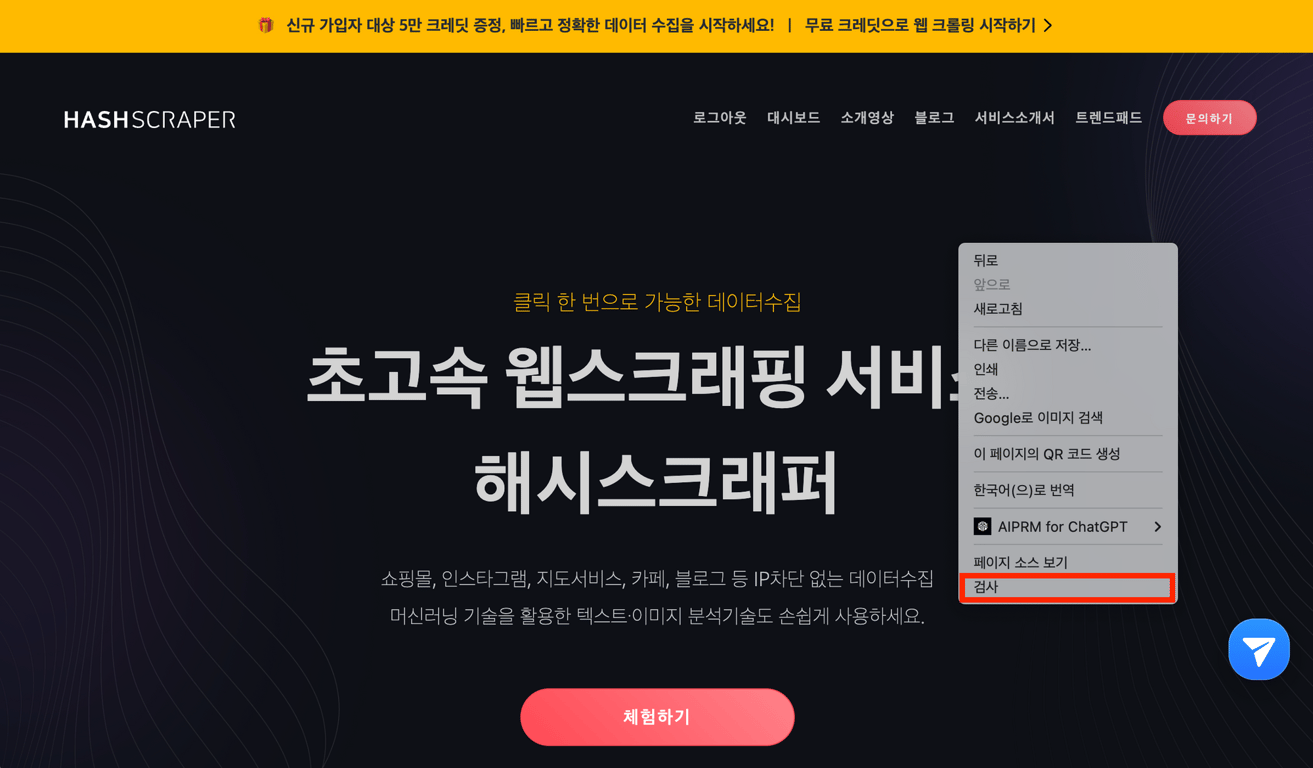
First, open the desired website, then click the left mouse button and press 'Inspect' to open the Chrome Developer Tools.
5.2. Identify the Desired Tag
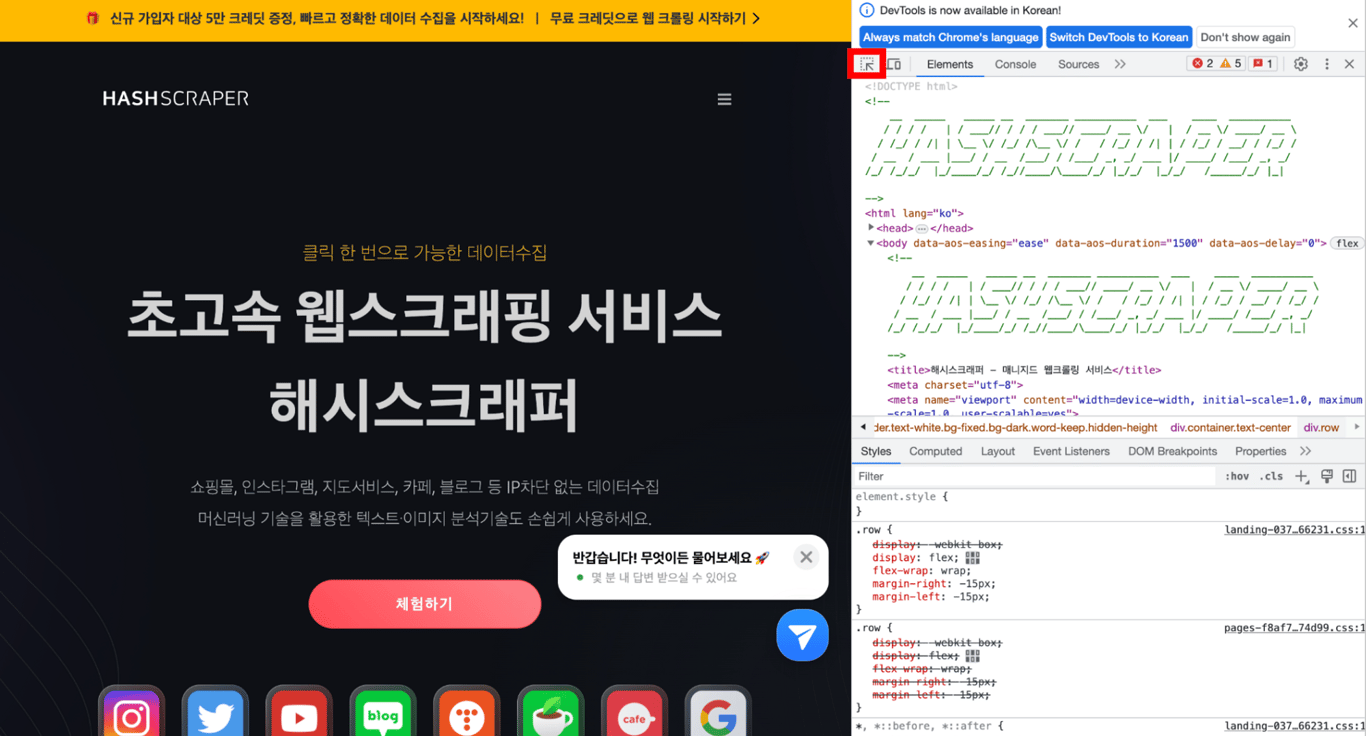
In the Developer Tools, click the mouse icon in the top left corner. Then, hover the mouse over the part of the website you want to retrieve, and it will show as below.
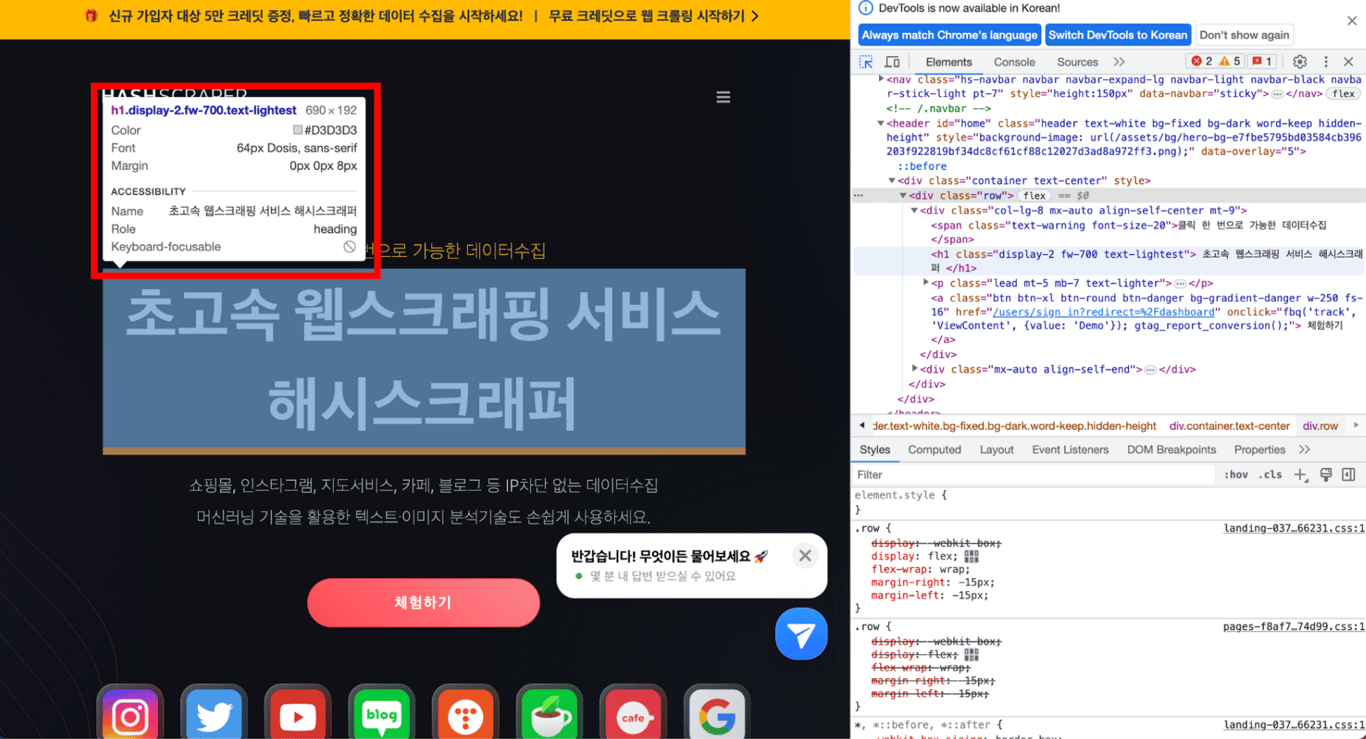
Click on the area where you placed the mouse, and the Developer Tools will show the tag of the desired part in the actual HTML code.
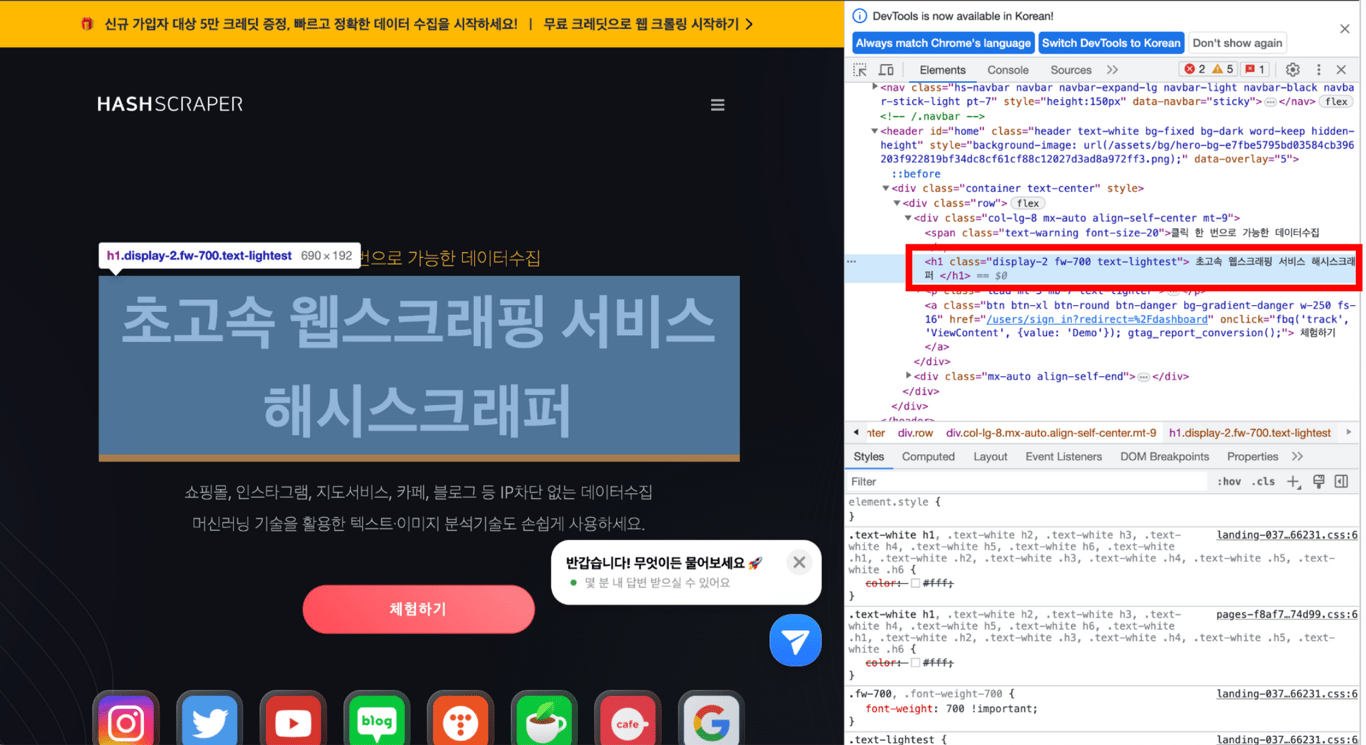
5.3. Copy XPath
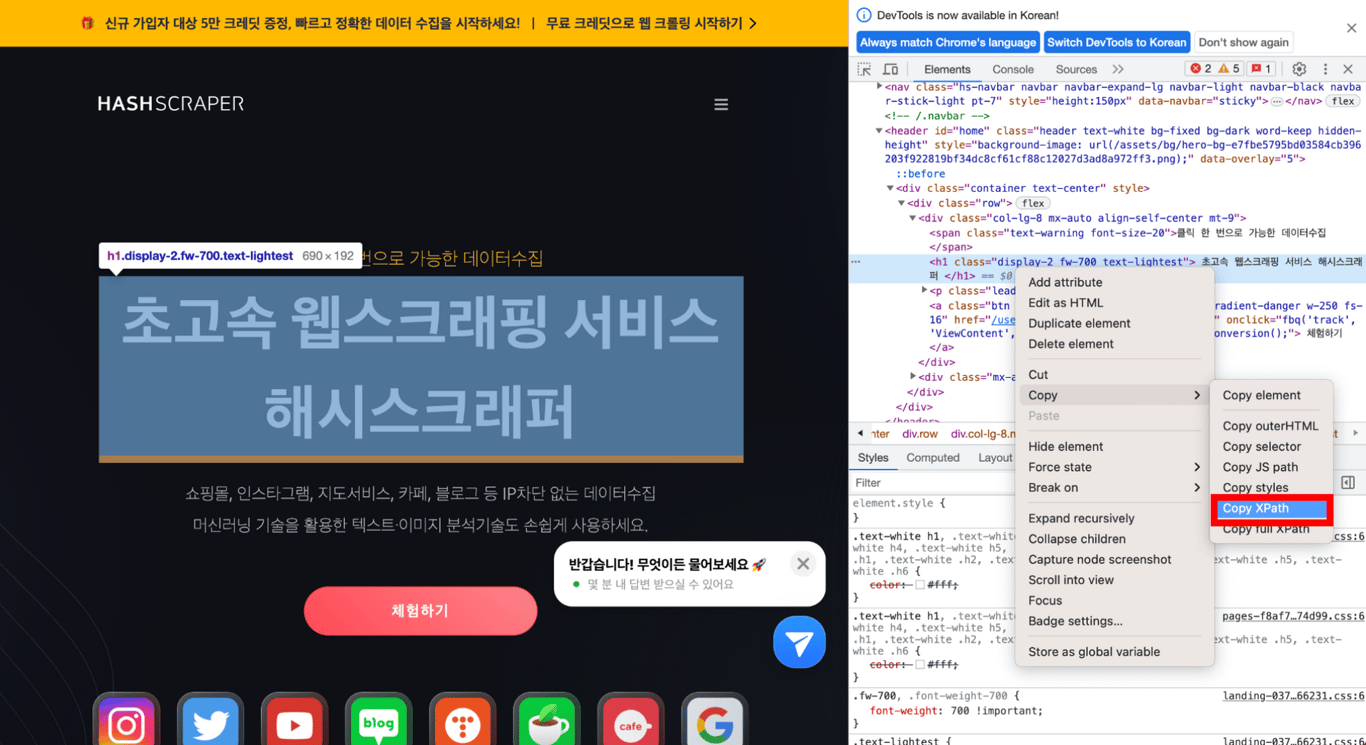
Copy the desired part, then Copy > Copy XPath, and paste the copied content to see the XPath of the desired part!
You can confirm that the XPath of the desired part has been correctly retrieved as shown below.
//*[@id="home"]/div/div/div[1]/h1
Then, how can this retrieved XPath be used in web crawling? Here is a snippet of crawling code.
get_browser.goto "<https://www.hashscraper.com>"
x = get_browser.element(xpath: "//*[@id='home']/div/div/div[1]/h1").text
5.4. Verification
By using XPath to retrieve the desired element and storing it in x, printing x will show the text you wanted as follows.
6. Conclusion: Study XPath for Proper Web Crawling
We have learned the basics of web crawling and XPath. To collect the data you want through crawling, you need to know how that data can be represented through paths, which can be easily expressed using XPath. We recommend starting with XPath study before diving into web crawling!
Also, read this article together:
Data Collection, Automate Now
Start crawling 5,000+ websites in 5 minutes without coding


